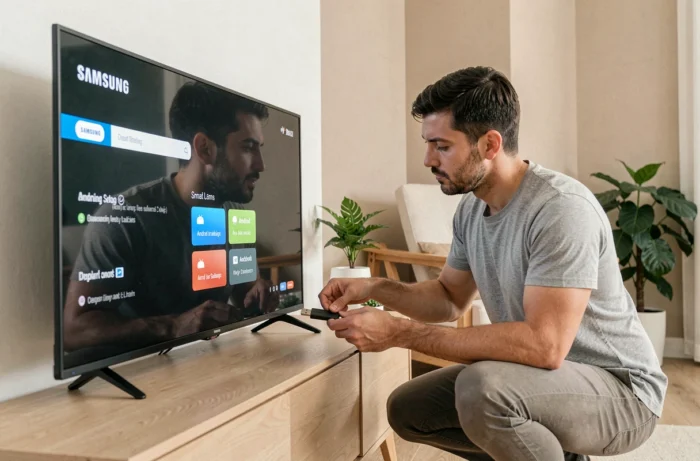
Recent Samsung Smart TVs run on Tizen OS, a proprietary system that natively rejects Android APK files. Any attempt to directly install Android on the firmware of a Samsung TV faces hardware and software locks that have further tightened since the security updates rolled out from 2024. We recommend starting from this technical observation before exploring truly functional alternatives.
Tizen OS and APK Lock: Why Android Doesn’t Install on a Samsung TV
Tizen relies on a sandbox mechanism, application signature verification, and strict permission control. Only .wgt or .tpk format widgets, signed and distributed via the Samsung App Store, can run on the TV. Android APKs are completely rejected by the system, without exception.
Since 2024, Samsung has strengthened this security policy. Firmware updates block sideloading attempts that may have worked on older Tizen models. Flashing a custom Android firmware on a recent Samsung TV risks an irreversible brick of the television, with no recourse possible from manufacturer support.
In practice, when a guide promises to install Android on a Samsung Smart TV, it refers either to adding applications via the Tizen store or using an external device. Replacing Tizen with Android TV on the TV’s motherboard has no documented and reliable procedure for current QLED or Crystal UHD models.
External Android Device via HDMI: The Method That Actually Works
Connecting an Android TV box or dongle to the HDMI port remains the only reliable approach to access the Android ecosystem on a Samsung screen. This method keeps the Tizen firmware intact and provides access to the full Google Play Store.
Choosing Between a Dongle and an Android TV Box
- Dongles (like Chromecast with Google TV or similar sticks) plug directly into an HDMI port and are powered via USB. Their footprint is minimal, but performance may plateau on heavy applications or sustained 4K HDR streaming.
- Dedicated Android TV boxes (Nvidia Shield TV, Xiaomi TV Box, or alternatives) offer more computing power, more comfortable internal storage, and sometimes an Ethernet port for a stable wired connection.
- Amazon Fire TV Sticks run on Fire OS, a fork of Android. Sideloading APKs is possible via developer options, making it a gateway to apps missing from the Amazon store.
We observe that the majority of users looking to “install Android” on their Samsung TV actually want to access apps missing from the Samsung App Store. The external box solves this problem without any risky manipulation of the television.
Setup and Switching Between Tizen and Android
Once the device is connected, the Samsung TV detects it as a standard HDMI source. Simply select the corresponding input via the Samsung remote or the Anynet+ (HDMI-CEC) function for the Samsung remote to directly control the Android interface.
HDMI-CEC allows you to turn on and off the box simultaneously with the TV, and navigate through Android menus with the original remote. If CEC poses compatibility issues, the Bluetooth remote provided with the box takes over.
Screen Mirroring and Google Cast: Use Android Without Additional Hardware
Before investing in a box, a software solution already exists on most recent Samsung TVs. Screen mirroring (Smart View) and Google Cast cover some of the desired uses.
Smart View, integrated into Samsung Galaxy smartphones, allows you to duplicate the phone’s screen on the TV via the local Wi-Fi network. Latency makes this option unsuitable for gaming, but it suffices to display an Android application on a large screen: web browsing, social networks, streaming apps not available on Tizen.
Google Cast works with most compatible Android applications (YouTube, Spotify, and many third-party apps). Content is sent directly to the TV without duplicating the screen, freeing the phone for other tasks. On Samsung models that include AirPlay, iOS users have an equivalent option.
Tizen Applications to Know Before Seeking an Android Alternative
The Samsung App Store offers a more limited catalog than the Google Play Store, but it covers major streaming services and several categories of utility applications. Before connecting an external device, we recommend checking if the desired application exists in a Tizen version.
- The main streaming services (Netflix, Disney+, Prime Video, Apple TV+, Molotov) all have Tizen-optimized applications for Samsung TVs, often with HDR and Dolby Atmos support.
- IPTV applications like Smart IPTV or IPTV Smarters exist in Tizen .wgt versions installable via the store or through the TV’s URL Launcher, without the need for an APK.
- Stremio, Kodi, or other media centers do not have an official Tizen version. For these uses, using an external Android TV box remains the only option.
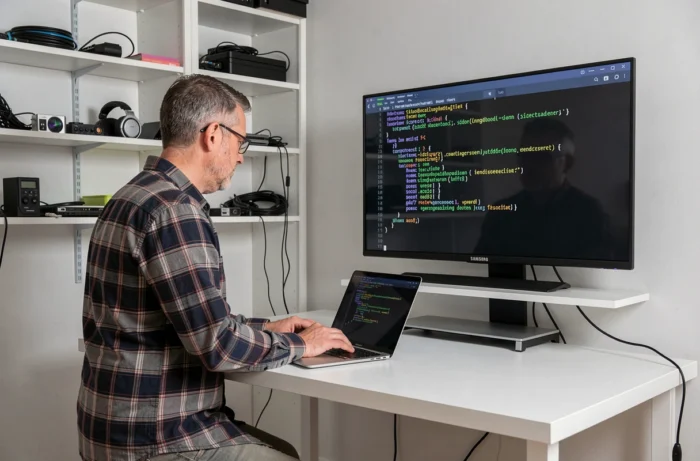
The Tizen developer mode, accessible through the TV settings, allows the installation of .tpk widgets from a computer connected to the same network. This manipulation, reserved for advanced users, only concerns applications compiled for Tizen and does not allow for the execution of an Android APK in any way.
The choice between an external box and utilizing the Tizen catalog depends on one criterion: does the targeted application exist on the Samsung App Store? If yes, the Tizen version will be better integrated into the TV. If not, a dongle or an Android TV box connected via HDMI remains the cleanest answer, with no risk to the firmware or the TV’s warranty.